How To Point Your Domain To Your Server In Hostinger
Log in to Hostinger
Go to Hostinger Panel ( https://auth.hostinger.com/login)
Navigate to Domains → Manage Domain.
Edit A Records (IPv4)
A records connect your domain to your server's IPv4 address.
Go to the A Records section: Manage A Records ( https://www.hostinger.com/support/4468886-how-to-manage-a-records-at-hostinger/).
Enter:
Name / Host: @
Points to / Value: 15.204.232.177
TTL: Default or 3600 seconds.
Save changes.
Edit AAAA Records (IPv6)
If your server supports IPv6, use AAAA records:
Go to Manage AAAA Records (https://www.hostinger.com/support/8899705-how-to-manage-aaaa-records-at-hostinger/)
Click Add Record.
Enter:
Name / Host: @
Points to / Value: 2604:2dc0:101:200::1475.
TTL: Default or 3600 seconds.
Save changes.
Edit CNAME Records
If you want to also use www prefix in a browser create a CNAME record:
Go to Manage CNAME Records (https://www.hostinger.com/support/4738777-how-to-manage-cname-records-at-hostinger/)
Click Add Record.
Enter:
Name / Host: www
Points to / Value: Your main domain (e.g., example.com).
TTL: Default or 3600 seconds.
Save changes.
Go to your Instago project dashboard, click Manage Domain.
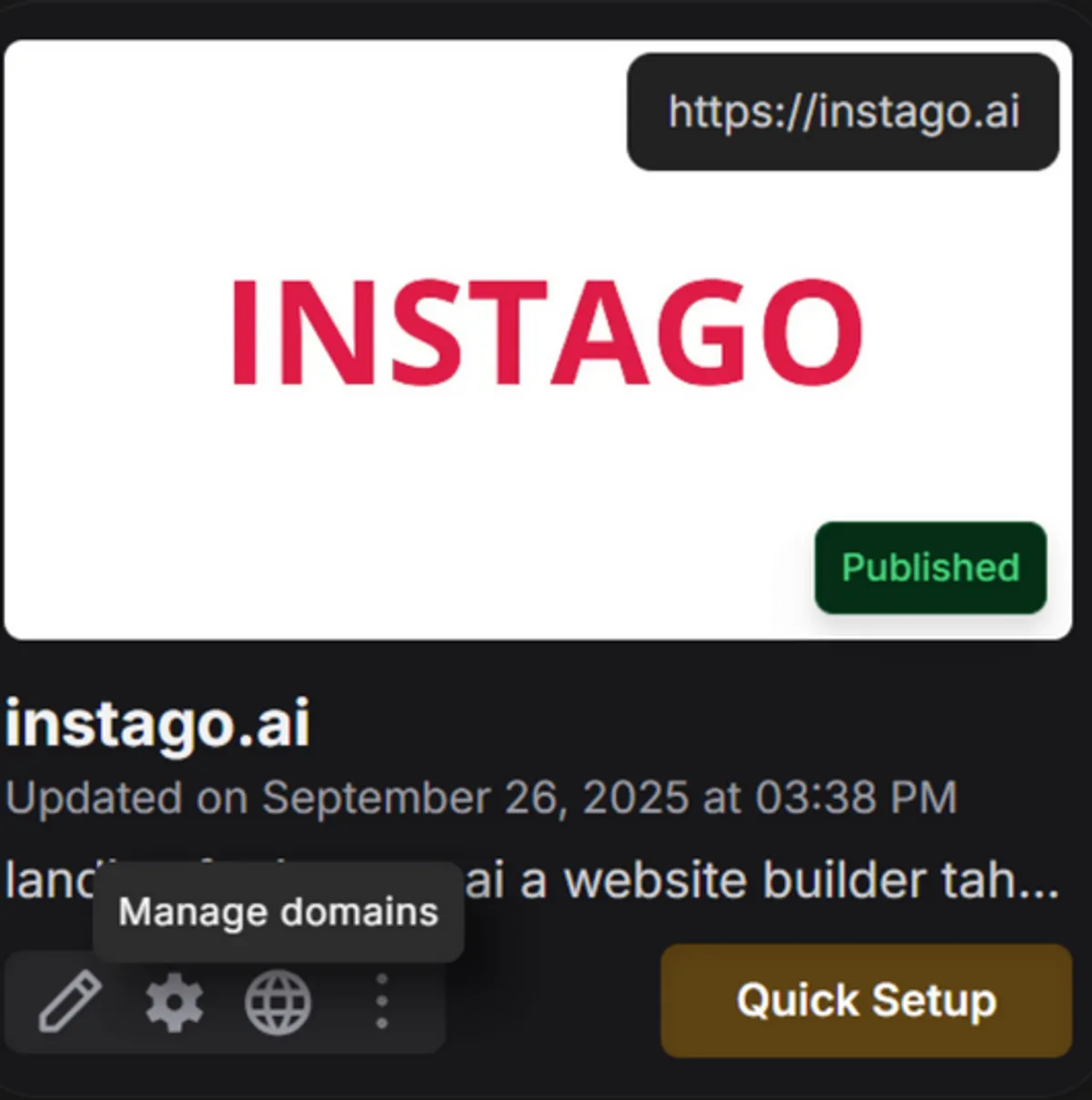
Then Attach your domain by typing the domain name.

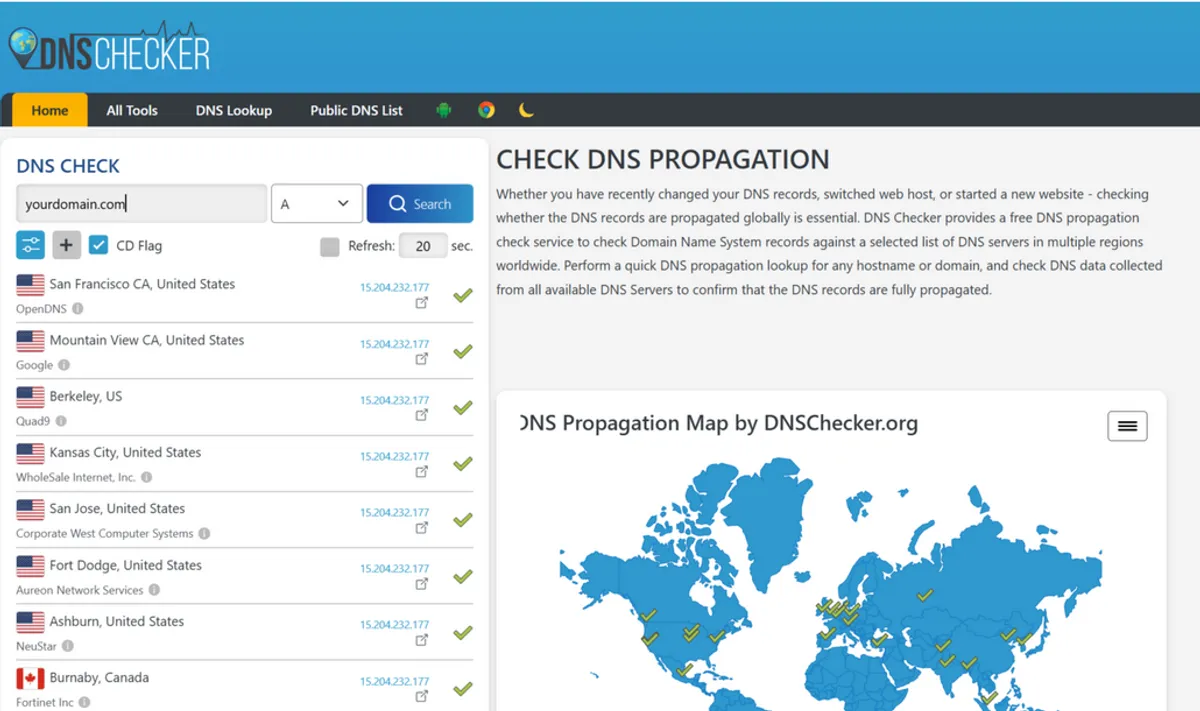
Go to https://dnschecker.org/ and type your domain name to check that your DNS is set up correctly and points to our server.
Below some an example of correct output.
Wait for DNS Propagation
DNS changes usually propagate within 1–24 hours.
You can check using tools like DNS Checker